
# Excel 导入导出
项目的 xcmd-spring-boot-starter-excel (opens new window)
技术组件,基于 EasyExcel 实现 Excel 的读写操作,可用于实现最常见的 Excel 导入导出等功能。
EasyExcel 的介绍?
EasyExcel 是阿里开源的 Excel 工具库,具有简单易用、低内存、高性能的特点。
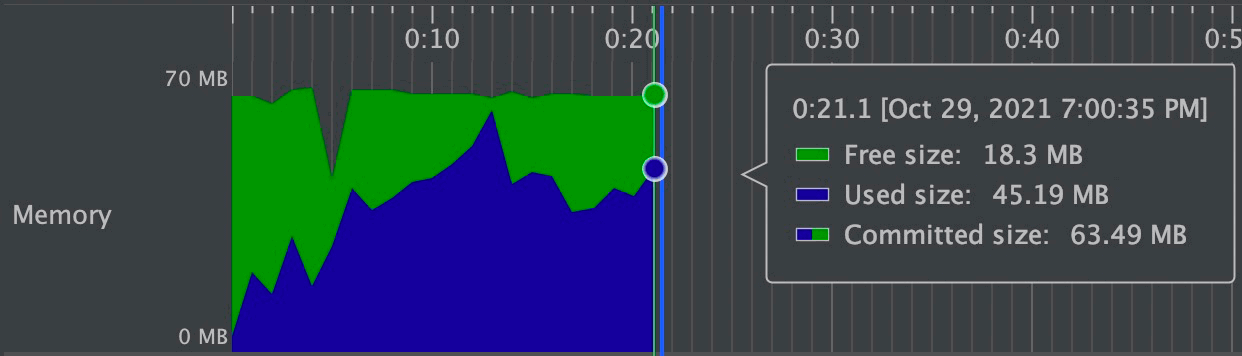
在尽可用节约内存的情况下,支持百万行的 Excel 读写操作。例如说,仅使用 64M 内存,20 秒完成 75M(46 万行 25 列)Excel 的读取。并且,还有极速模式能更快,但是内存占用会在100M 多一点。
# 1. Excel 导出
以 [系统管理 -> 岗位管理] 菜单为例子,讲解它 Excel 导出的实现。
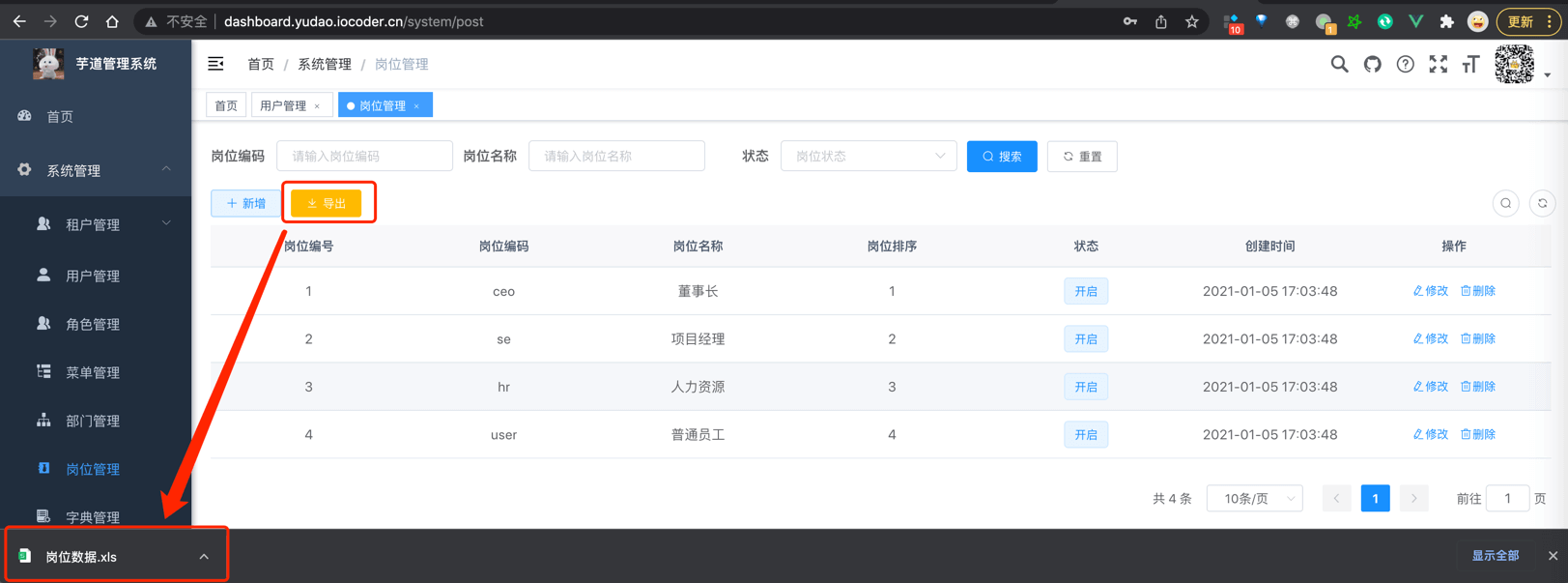
# 1.1 后端导入实现
在 PostController (opens new window)
类中,定义 /admin-api/system/post/export 导出接口。代码如下:
        @GetMapping("/export")
    @Operation(summary = "岗位管理")
    @PreAuthorize("@ss.hasPermission('system:post:export')")
    @ApiAccessLog(operateType = EXPORT)
    public void export(HttpServletResponse response, @Validated PostPageReqVO reqVO) throws IOException {
        // ① 查询数据
        reqVO.setPageSize(PageParam.PAGE_SIZE_NONE);
        List<PostDO> list = postService.getPostPage(reqVO).getList();
        // ② 导出 Excel
        ExcelUtils.write(response, "岗位数据.xls", "岗位列表", PostRespVO.class,
        BeanUtils.toBean(list, PostRespVO.class));
        }
2
3
4
5
6
7
8
9
10
11
12
- ① 将从数据库中查询出来的列表,一般可以复用分页接口,需要设置
.setPageSize(PageParam.PAGE_SIZE_NONE)不过滤分页。 - ② 将 PostDO 列表,转换成 PostRespVO 列表,之后通过 ExcelUtils 转换成 Excel 文件,返回给前端。
# 1.1.1 PostExcelVO 类
复用 PostRespVO (opens new window) 类,实现 岗位 Excel 导出的 VO 类。代码如下:
    @Schema(description = "管理后台 - 岗位信息 Response VO")
    @Data
    @ExcelIgnoreUnannotated // ③
    public class PostRespVO {

    @Schema(description = "岗位序号", requiredMode = Schema.RequiredMode.REQUIRED, example = "1024")
    @ExcelProperty("岗位序号") // ①
    private Long id;

    @Schema(description = "岗位名称", requiredMode = Schema.RequiredMode.REQUIRED, example = "小土豆")
    @ExcelProperty("岗位名称")
    private String name;

    @Schema(description = "岗位编码", requiredMode = Schema.RequiredMode.REQUIRED, example = "yudao")
    @ExcelProperty("岗位编码")
    private String code;

    @Schema(description = "显示顺序不能为空", requiredMode = Schema.RequiredMode.REQUIRED, example = "1024")
    @ExcelProperty("岗位排序")
    private Integer sort;

    @Schema(description = "状态,参见 CommonStatusEnum 枚举类", requiredMode = Schema.RequiredMode.REQUIRED, example = "1")
    // ②
    @ExcelProperty(value = "状态", converter = DictConvert.class)
    @DictFormat(DictTypeConstants.COMMON_STATUS)
    private Integer status;

    @Schema(description = "备注", example = "快乐的备注")
    private String remark;

    @Schema(description = "创建时间", requiredMode = Schema.RequiredMode.REQUIRED)
    private LocalDateTime createTime;

}
2
3
4
5
6
7
8
9
10
11
12
13
14
15
16
17
18
19
20
21
22
23
24
25
26
27
28
29
30
31
32
33
34
- ① 每个字段上,添加
@ExcelProperty(opens new window) 注解,声明 Excel Head 头部的名字。每个字段的值,就是它对应的 Excel Row 行的数据值。 - ② 如果字段的的注解
converter属性是 DictConvert 转换器,用于字典的转换。例如说,通过status字段,将status = 1转换成“开启”列,status = 0转换成”禁用”列。稍后,我们会在 「3. 字段转换器」 小节来详细讲讲。 - ③ 在类上,添加
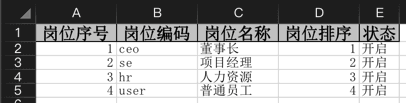
@ExcelIgnoreUnannotated(opens new window) 注解,表示未添加@ExcelProperty的字段,不进行导出。 因此,最终 Excel 导出的效果如下:
# 1.1.2 ExcelUtils 写入
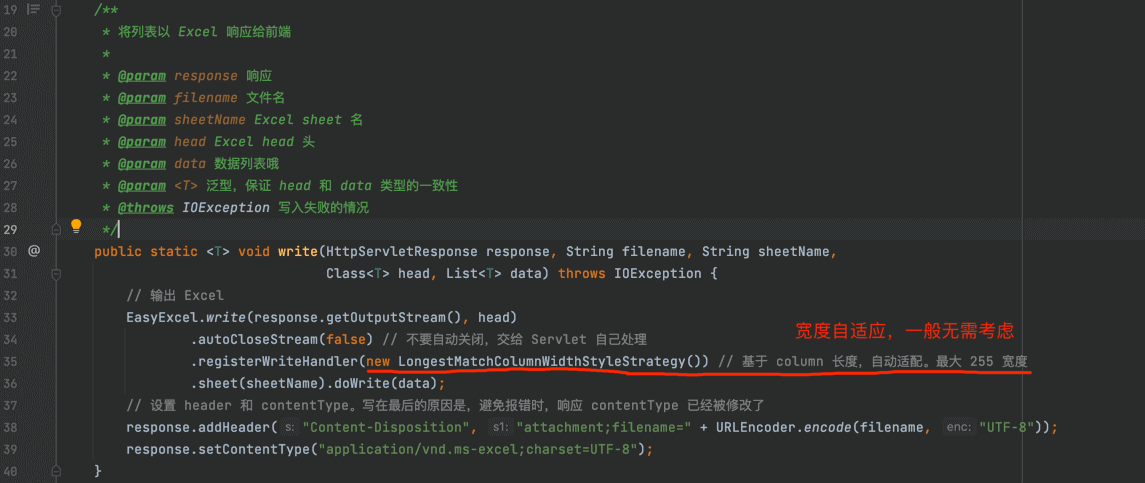
ExcelUtils 的 #write(...) (opens new window)
方法,将列表以 Excel 响应给前端。代码如下图:
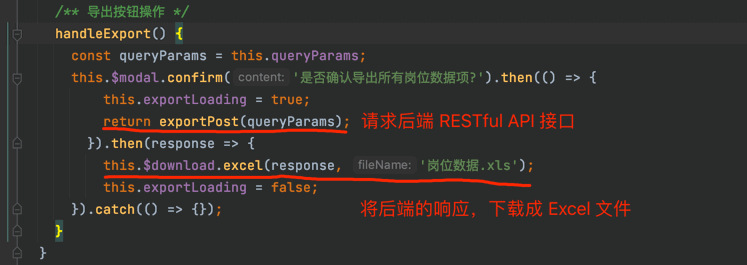
# 1.2 前端导入实现
在 post/index.vue (opens new window)
界面,定义 #handleExport() 操作,代码如下图:
# 2. Excel 导入
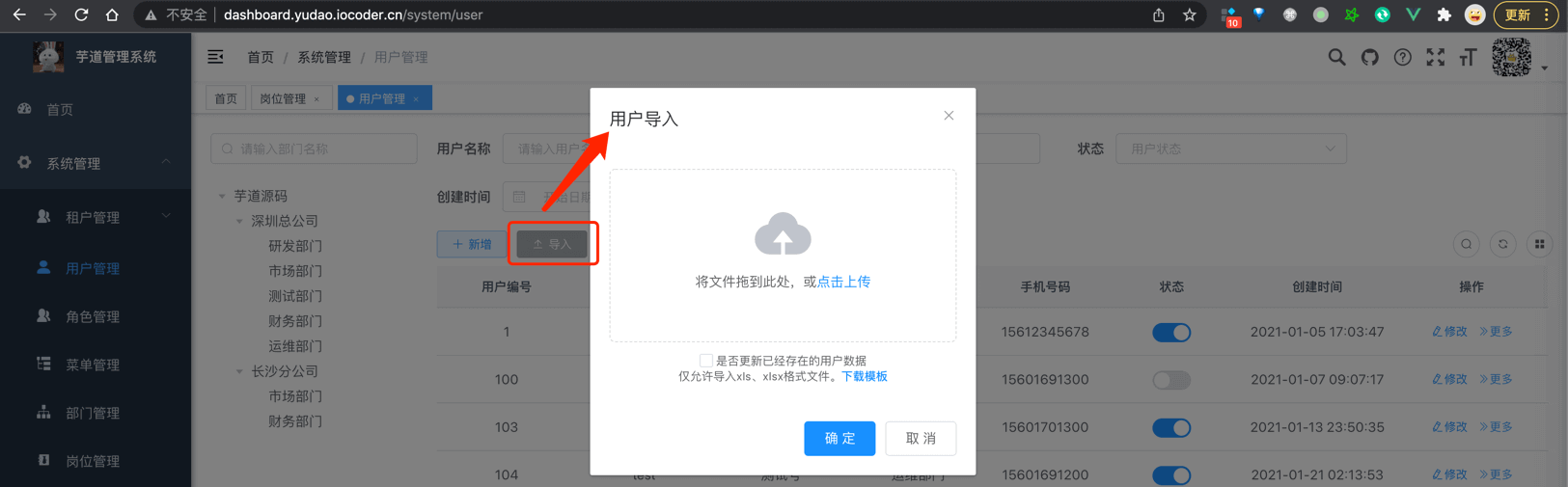
以 [系统管理 -> 用户管理] 菜单为例子,讲解它 Excel 导出的实现。
# 2.1 后端导入实现
在 UserController (opens new window)
类中,定义 /admin-api/system/user/import 导入接口。代码如下:
 将前端上传的 Excel 文件,读取成 UserImportExcelVO 列表。
# 2.1.1 UserImportExcelVO 类
创建 UserImportExcelVO (opens new window)
类,用户 Excel 导入的 VO 类。它的作用和 Excel 导入是一样的,代码如下:
 对应使用的 Excel 导入文件如下:

# 2.1.2 ExcelUtils 读取
ExcelUtils 的 #read(...) (opens new window)
方法,读取 Excel 文件成列表。代码如下图:

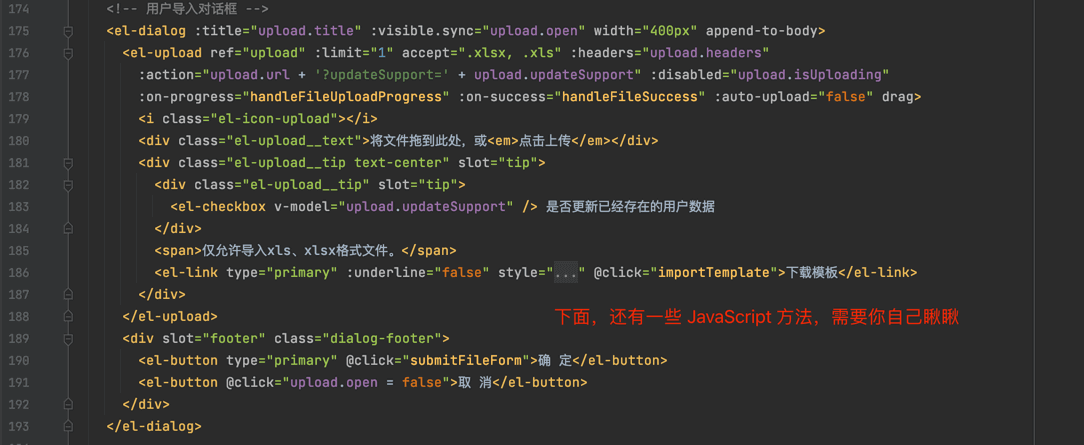
# 2.2 前端导入实现
在 user/index.vue (opens new window)
界面,定义 Excel 导入的功能,代码如下图:
3. 字段转换器
——————————————————————————————————————————————EasyExcel 定义了 Converter (opens new window)
接口,用于实现字段的转换。它有两个核心方法:
① #convertToJavaData(...) 方法:将 Excel Row 对应表格的值,转换成 Java 内存中的值。例如说,Excel 的“状态”列,
将“状态”列转换成 status = 1,”禁用”列转换成 status = 0。
② #convertToExcelData(...) 方法:恰好相反,将 Java 内存中的值,转换成 Excel Row 对应表格的值。例如说,Excel
的“状态”列,将 status = 1 转换成“开启”列,status = 0 转换成”禁用”列。
# 3.1 DictConvert 实现
以项目中提供的 DictConvert (opens new window)
举例子,它实现 Converter 接口,提供字典数据的转换。代码如下:
 实现的代码比较简单,自己看看就可以明白。
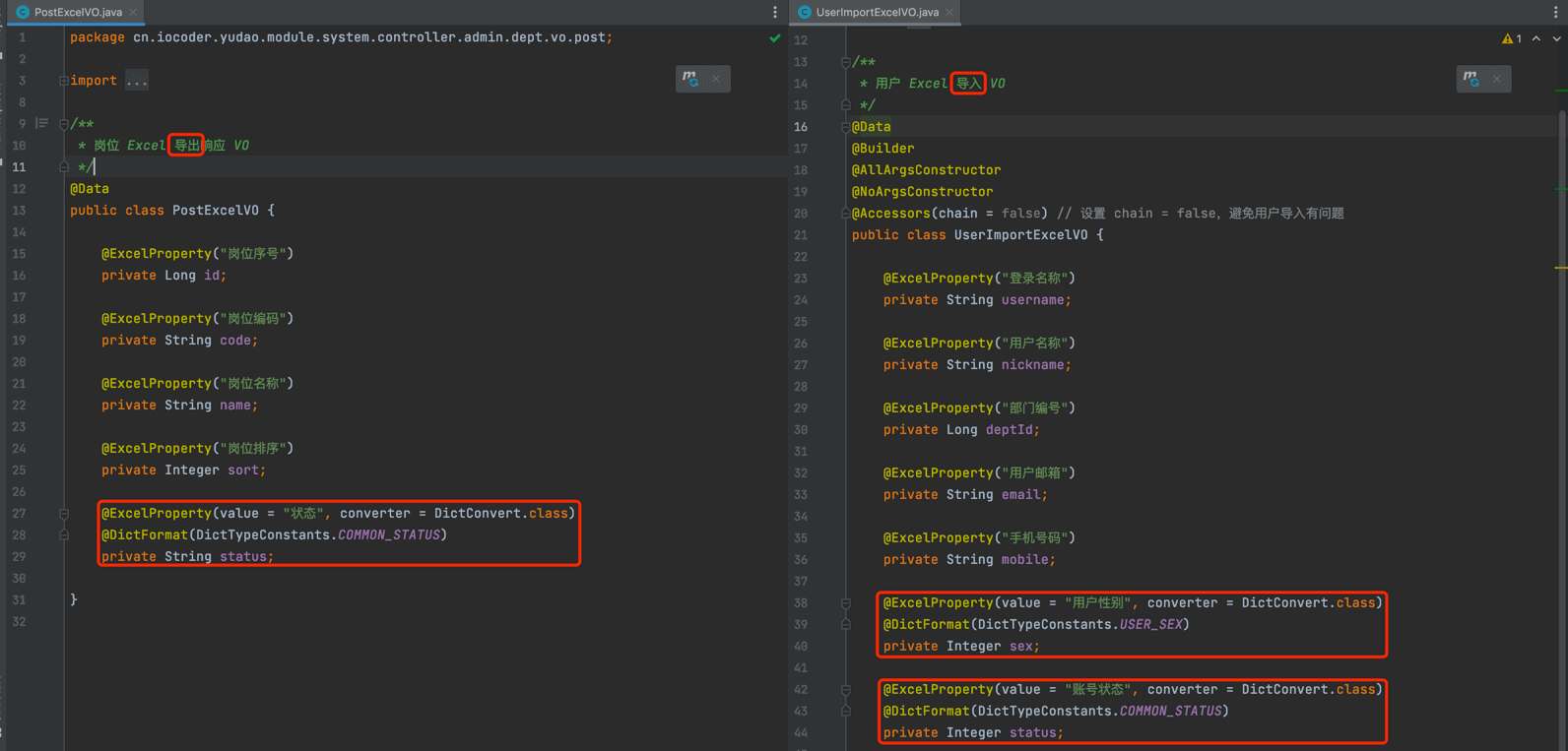
# 3.1 DictConvert 使用示例
在需要转换的字段上,声明注解 @ExcelProperty 的 converter 属性是 DictConvert 转换器,注解 @DictFormat (opens new window)
为对应的字典数据的类型。示例如下:
# 4. 更多 EasyExcel 注解
基于 《EasyExcel 中的注解 》 (opens new window) 文章,整理相关注解。
# 4.1 @ExcelProperty
这是最常用的一个注解,注解中有三个参数 value、index、converter 分别代表列明、列序号、数据转换方式。
value 和 index 只能二选一,通常不用设置 converter。
最佳实践
    public class ImeiEncrypt {

    @ExcelProperty(value = "imei")
    private String imei;
}
2
3
4
5
# 4.2 @ColumnWidth
用于设置列宽度的注解,注解中只有一个参数 value。value 的单位是字符长度,最大可以设置 255 个字符,因为一个
Excel 单元格最大可以写入的字符个数,就是 255 个字符。
最佳实践
    public class ImeiEncrypt {

    @ColumnWidth(value = 18)
    private String imei;
}
2
3
4
5
# 4.3 @ContentFontStyle
用于设置单元格内容字体格式的注解。参数如下:
| 参数 | 含义 |
|---|---|
fontName | 字体名称 |
fontHeightInPoints | 字体高度 |
italic | 是否斜体 |
strikeout | 是否设置删除水平线 |
color | 字体颜色 |
typeOffset | 偏移量 |
underline | 下划线 |
bold | 是否加粗 |
charset | 编码格式 |
# 4.4 @ContentLoopMerge
用于设置合并单元格的注解。参数如下:
| 参数 | 含义 |
|---|---|
eachRow | |
columnExtend |
# 4.5 @ContentRowHeight
用于设置行高。参数如下:
| 参数 | 含义 |
|---|---|
| value | 行高,-1代表自动行高 |
# 4.6 @ContentStyle
设置内容格式注解。参数如下:
| 参数 | 含义 |
|---|---|
dataFormat | 日期格式 |
hidden | 设置单元格使用此样式隐藏 |
locked | 设置单元格使用此样式锁定 |
quotePrefix | 在单元格前面增加`符号,数字或公式将以字符串形式展示 |
horizontalAlignment | 设置是否水平居中 |
wrapped | 设置文本是否应换行。将此标志设置为true通过在多行上显示使单元格中的所有内容可见 |
verticalAlignment | 设置是否垂直居中 |
rotation | 设置单元格中文本旋转角度。03版本的Excel旋转角度区间为-90°~90°,07版本的Excel旋转角度区间为0°~180° |
indent | 设置单元格中缩进文本的空格数 |
borderLeft | 设置左边框的样式 |
borderRight | 设置右边框样式 |
borderTop | 设置上边框样式 |
borderBottom | 设置下边框样式 |
leftBorderColor | 设置左边框颜色 |
rightBorderColor | 设置右边框颜色 |
topBorderColor | 设置上边框颜色 |
bottomBorderColor | 设置下边框颜色 |
fillPatternType | 设置填充类型 |
fillBackgroundColor | 设置背景色 |
fillForegroundColor | 设置前景色 |
shrinkToFit | 设置自动单元格自动大小 |
# 4.7 @HeadFontStyle
用于定制标题字体格式。参数如下:
| 参数 | 含义 |
|---|---|
fontName | 设置字体名称 |
fontHeightInPoints | 设置字体高度 |
italic | 设置字体是否斜体 |
strikeout | 是否设置删除线 |
color | 设置字体颜色 |
typeOffset | 设置偏移量 |
underline | 设置下划线 |
charset | 设置字体编码 |
bold | 设置字体是否加粗 |
# 4.8 @HeadRowHeight
设置标题行行高。参数如下:
| 参数 | 含义 |
|---|---|
value | 行高,-1代表自动行高 |
# 4.9 @HeadStyle
设置标题样式。参数如下:
| 参数 | 含义 |
|---|---|
dataFormat | 日期格式 |
hidden | 设置单元格使用此样式隐藏 |
locked | 设置单元格使用此样式锁定 |
quotePrefix | 在单元格前面增加`符号,数字或公式将以字符串形式展示 |
horizontalAlignment | 设置是否水平居中 |
wrapped | 设置文本是否应换行。将此标志设置为true通过在多行上显示使单元格中的所有内容可见 |
verticalAlignment | 设置是否垂直居中 |
rotation | 设置单元格中文本旋转角度。03版本的Excel旋转角度区间为-90°~90°,07版本的Excel旋转角度区间为0°~180° |
indent | 设置单元格中缩进文本的空格数 |
borderLeft | 设置左边框的样式 |
borderRight | 设置右边框样式 |
borderTop | 设置上边框样式 |
borderBottom | 设置下边框样式 |
leftBorderColor | 设置左边框颜色 |
rightBorderColor | 设置右边框颜色 |
topBorderColor | 设置上边框颜色 |
bottomBorderColor | 设置下边框颜色 |
fillPatternType | 设置填充类型 |
fillBackgroundColor | 设置背景色 |
fillForegroundColor | 设置前景色 |
shrinkToFit | 设置自动单元格自动大小 |
# 4.10 @ExcelIgnore
不将该字段转换成 Excel。
# 4.11 @ExcelIgnoreUnannotated
没有注解的字段都不转换